Your Android home button just stopped working. Maybe it's completely unresponsive. Maybe it's laggy and only registers every third press. Either way, it's one of the most frustrating things that can happen to a phone you rely on every day.
The good news: you don't have to live with it, and you probably don't need a repair shop.
Here are 5 fixes - starting with the easiest and ending with the most permanent.
Which Button Actually Stopped Working?
This guide covers the home button. Android navigation has three buttons and they fail for different reasons, so if the problem is somewhere else, start with the guide for that specific button:
| What is broken | Start here |
|---|---|
| Home button (this guide) | You are in the right place |
| Back button ignores taps or swipes | Android Back Button Not Working |
| Recents / app switcher does nothing | Android Recent Apps Button Not Working |
| The entire navigation bar is frozen or gone | Android Navigation Bar Not Working |
| You are on a Samsung Galaxy | Samsung Home Button Not Working |
If more than one button stopped at the same time, it is almost never a hardware fault. Go straight to the navigation bar guide - the cause is usually System UI, not the buttons.
Two Tests That Narrow It Down First
These take a minute between them and tell you which of the five fixes below you actually need.
Does it work in safe mode? Hold power, long-press "Power off", tap OK. Safe mode loads Android without any app you installed. If home works there, an installed app is swallowing the tap - usually something holding an overlay - and Fix 1 and Fix 2 will not help. Uninstall recent overlay apps instead.
Is the touch layer dead along the bottom? The keyboard cannot answer this - it is laid out above the navigation bar, so it never covers the strip the home button sits on. Turn on Settings - System - Developer options - Pointer location (if Developer options is not in Settings yet, open Settings - About phone and tap Build number seven times), then drag a finger slowly across the very bottom of the screen. If the trace breaks or stops inside one band, that band is dead. That is hardware, and only Fix 5 works around it. On Samsung, Samsung Members - Support - Phone diagnostics - Touch screen does the same with nothing to enable first.
Fix 1: Restart Your Phone
Before anything else: hold the power button and restart. Not sleep - a full restart.
This sounds too simple, but a surprising number of "broken button" reports are actually just a temporary software freeze. The home button is handled by the Android system process, and like any process, it can get stuck. A restart clears it completely.
How to restart without the home button: Hold the power button (or volume down + power on some devices) until the restart option appears. On Samsung, it's usually power + volume down held for 10 seconds.
If the button works fine after a restart, the issue is software. Keep reading - Fix 4 and Fix 5 will prevent it from happening again.
Fix 2: Check Android's Built-in Navigation Settings
Modern Android has a built-in software navigation system that replaces physical buttons entirely. Most people don't realize it's already there, turned off by default.
On stock Android (Pixel, Nokia, Motorola): Settings - System - Gestures - System navigation - choose "Gesture navigation" or "3-button navigation"
On Samsung (One UI): Settings - Display - Navigation bar - choose "Swipe gestures" or "Buttons"
On Xiaomi / HyperOS: Settings - Home screen & lock screen - System navigation - Full-screen gestures
Once you switch to software navigation, the physical home button becomes optional. You can keep using your phone normally even if the hardware button never recovers.
Limitation: Android's built-in navigation replaces the home button with a swipe gesture or on-screen button, but it's fixed - you can't customize it, can't add shortcuts, can't map different actions to different gestures. That's where Fix 5 comes in.
Fix 3: Clean the Physical Button
If the button feels physically stuck, mushy, or only works at a specific angle, there's likely debris or moisture inside.
Safe cleaning method:
- Power off your phone completely
- Hold the phone with the button facing down
- Use a can of compressed air - short bursts at an angle around the button's edge
- Use a dry toothbrush to gently brush around the button's border
- If you have 99% isopropyl alcohol: dip a toothpick and run it along the button's edge (not into any openings)
Do not use water, acetone, or anything wet. Do not press the button repeatedly while doing this - it can push debris further in.
For buttons that feel physically damaged (sunken, wobbly, cracked), compressed air won't help. Skip to Fix 4 or 5.
Fix 4: Use Android's Accessibility Shortcut
Android has a built-in "Accessibility Menu" that adds an on-screen overlay with home, back, recents, and more. It's not as polished as a dedicated app, but it's built right into the OS.
How to enable it: Settings - Accessibility - Accessibility Menu - turn it on
A small square icon will appear at the bottom of your screen. Tap it to open a grid of system actions including Home, Back, Recents, Notifications, and Power.
The honest downside: The Accessibility Menu is designed for users with motor disabilities, so it's intentionally large and always visible. It has a fixed look, can't be moved, and only offers basic actions. If you want something that actually fits into how you use your phone, Fix 5 is better.
Fix 5: Replace It With a Floating Button App (Permanent Fix)
This is what most people land on after trying the above: a floating button app that sits over every screen, is fully draggable, and can do everything your home button did - plus more.
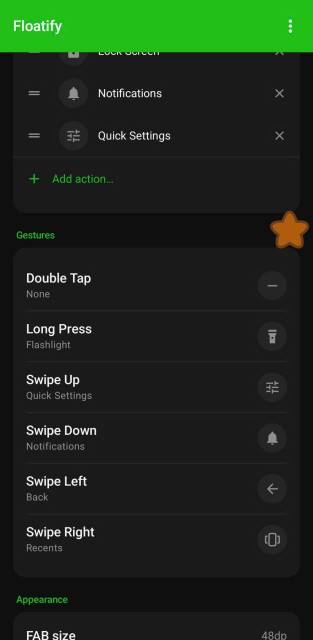
Floatify is one of the cleanest options available. It puts a small floating button anywhere on your screen. Single tap opens a menu, long press locks the phone, double tap can take a screenshot - you configure it however you want.
What makes it different from other floating button apps:
- No ads - most apps in this category are plastered with banners and interstitials. Floatify has none.
- Massive shape and emoji library - 100+ button shapes and 1,000+ emojis so it blends into your workflow
- Many system actions - screenshot, lock screen, WiFi toggle, volume, flashlight, open any app, and more
- No paywalls - every feature unlocked, nothing gated behind an upgrade
How to set it up:
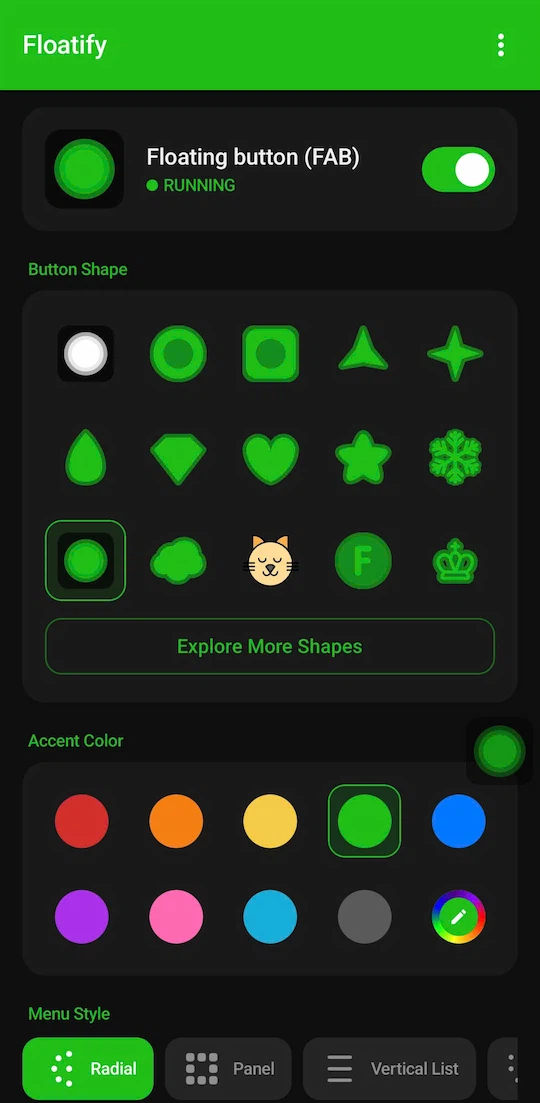
- Install Floatify from the Play Store (free)
- Open the app, tap "Enable"
- Grant the "Display over other apps" permission when prompted
- The floating button appears - drag it wherever you want
- Go to Settings to map gestures and actions
Once it's running, you'll find yourself using it even after your physical home button gets repaired. Having one-tap access to screenshot, lock screen, and flashlight from anywhere is genuinely useful regardless of hardware.
When to Actually Go to a Repair Shop
If the physical button is cracked, sunken, or feels broken at a hardware level, none of the software fixes above will restore it. In that case:
- Within warranty: Contact your manufacturer (Samsung, Google, Xiaomi) - physical button failure is often covered
- Out of warranty: A screen + button assembly replacement is usually $30-80 at third-party repair shops, depending on model
- Budget option: Use a floating button app indefinitely and skip the repair - many people do this
The floating button approach is genuinely good enough that paying for a repair is optional, not mandatory.
Frequently Asked Questions
Does a floating button app drain battery? Minimally. Floatify runs as a lightweight foreground service. In testing, it adds less than 1% battery drain over a full day. The button dims automatically when idle to reduce screen-on power usage.
Is it safe to grant "Display over other apps" permission? Yes. This is a standard Android permission (called SYSTEM_ALERT_WINDOW) that lets apps draw over other apps - the same permission used by chat heads, screen recorders, and clipboard managers. Floatify only uses it to show the floating button.
Can I use both a floating button app AND Android's built-in gestures? Yes. They don't conflict. Most people use Floatify for quick actions (screenshot, lock, flashlight) and Android's swipe gestures for navigation.
Will this work on my Samsung / Xiaomi / OPPO / Realme? Yes. Floatify works on Android 10+ devices regardless of manufacturer. The overlay permission process looks slightly different on each brand but works the same way.
What if I want to undo everything? Just uninstall Floatify and switch back to your original navigation style in Settings. No residual effects.
How do I know if it is software or hardware? Run the two tests at the top of this guide. Safe mode separates app-caused failures from everything else, and the pointer trace across the bottom of the screen tells you whether the touch layer itself has a dead band.
My home button and back button both stopped at the same time. What does that mean? Almost certainly System UI, not the buttons. Two separate hardware failures at the same moment is very unlikely. Restart first, then check whether a system update changed your navigation mode.
The bottom line: a broken hardware home button is a nuisance, not a dealbreaker. Between Android's built-in gesture navigation and a well-made floating button app, you can have a better experience than the original hardware button gave you - for free, in about 5 minutes.
Also Read
If a different button is the problem:
- Android Back Button Not Working
- Android Recent Apps Button Not Working
- Android Navigation Bar Not Working
- Samsung Home Button Not Working
If you want a floating button as a permanent replacement:
No ads. No sign-up. Works on Android 10+.